
To proceed with Hio's home care service, you will need to download the HioCare app on the app store to receive schedules, update schedule status, receive notifications from HioCare...
To use the app, Hio requires
- You need a smartphone
- Have certain knowledge of using applications, have used applications such as Zalo, Facebook... (please notify the Administrator if you do not have for further support)
The article content includes the following instructions for use:
- Download the app
- Sign up for an account
- Sign up for a job package
- Get calendar
- Update working status
1. Download the app
Currently, HioCare application can be found and downloaded on Google Play application (for Android phones)
(*) If you are using iOS application (Apple phone) please skip this tutorial.
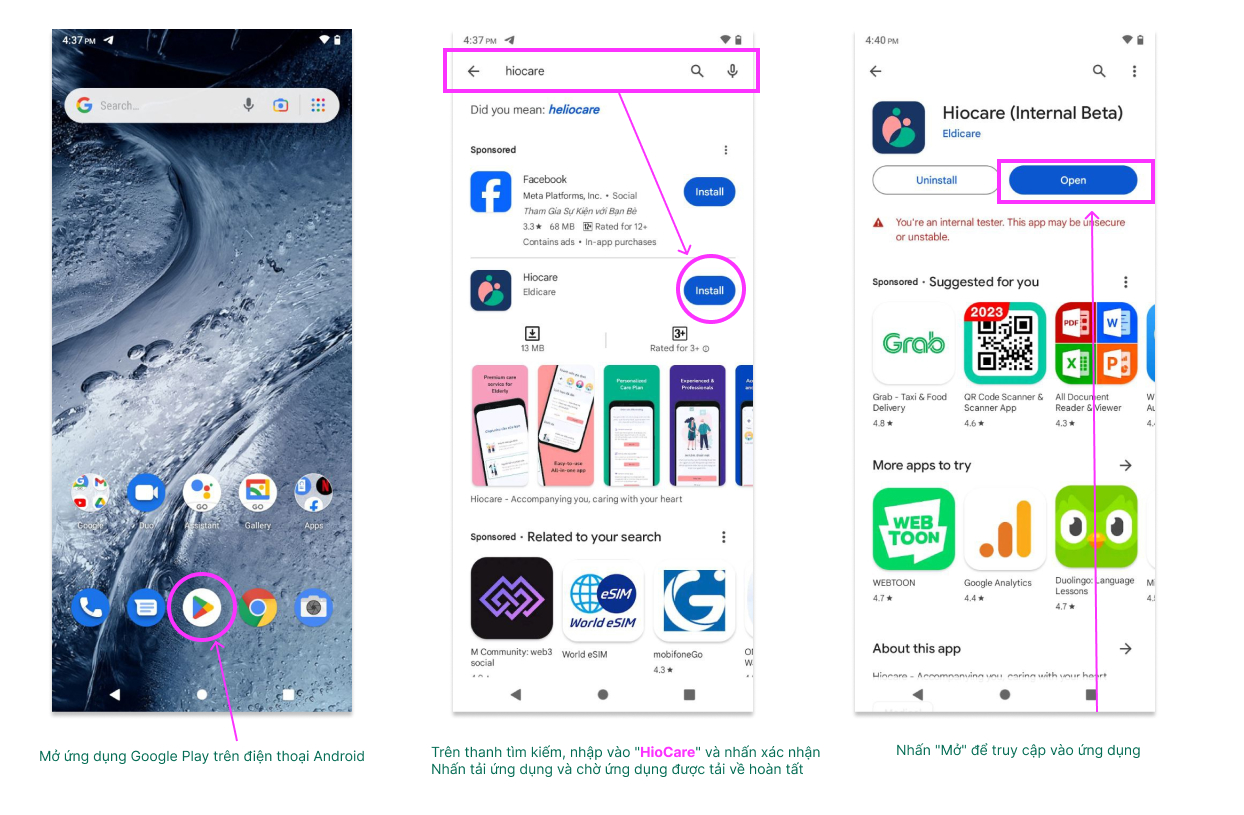
Download the app on Google Play
Step 1) Open the Google Play app  on Android phone
Step 2) On the search bar, type in “HioCare” and press confirm
Step 3) Click download app and wait for the app to finish downloading. Then click “Open” to access the app
2. Register an account
Step 1. Open the application after downloading to your phone
Step 2. At the demand selection screen, select exactly “Caregiver” and press “Continue”
Step 3. Click “Next” in the introduction section, when you see the “Register” button, click “Register” to proceed with account declaration.
Step 4. Enter your current phone number. Note: you need to enter the correct phone number to complete the registration. Phone numbers do not include the leading 0, for example 0933007588 then just enter 933007588
Step 5. Check your message for the 6-digit verification code and enter it in the verification section.
Step 6. Set a password for the account and confirm the password you set. Click “Continue”
Step 7. After registering, you will be automatically logged in and taken to the Home screen.
.jpg)
3. Register a work package
Before you can receive customer requests, you will need to register the work package you will be participating in (you can choose multiple packages). HioCare will ask you to provide some information. After completing the information registration, HioCare Administrator will review and confirm within 02 working days.
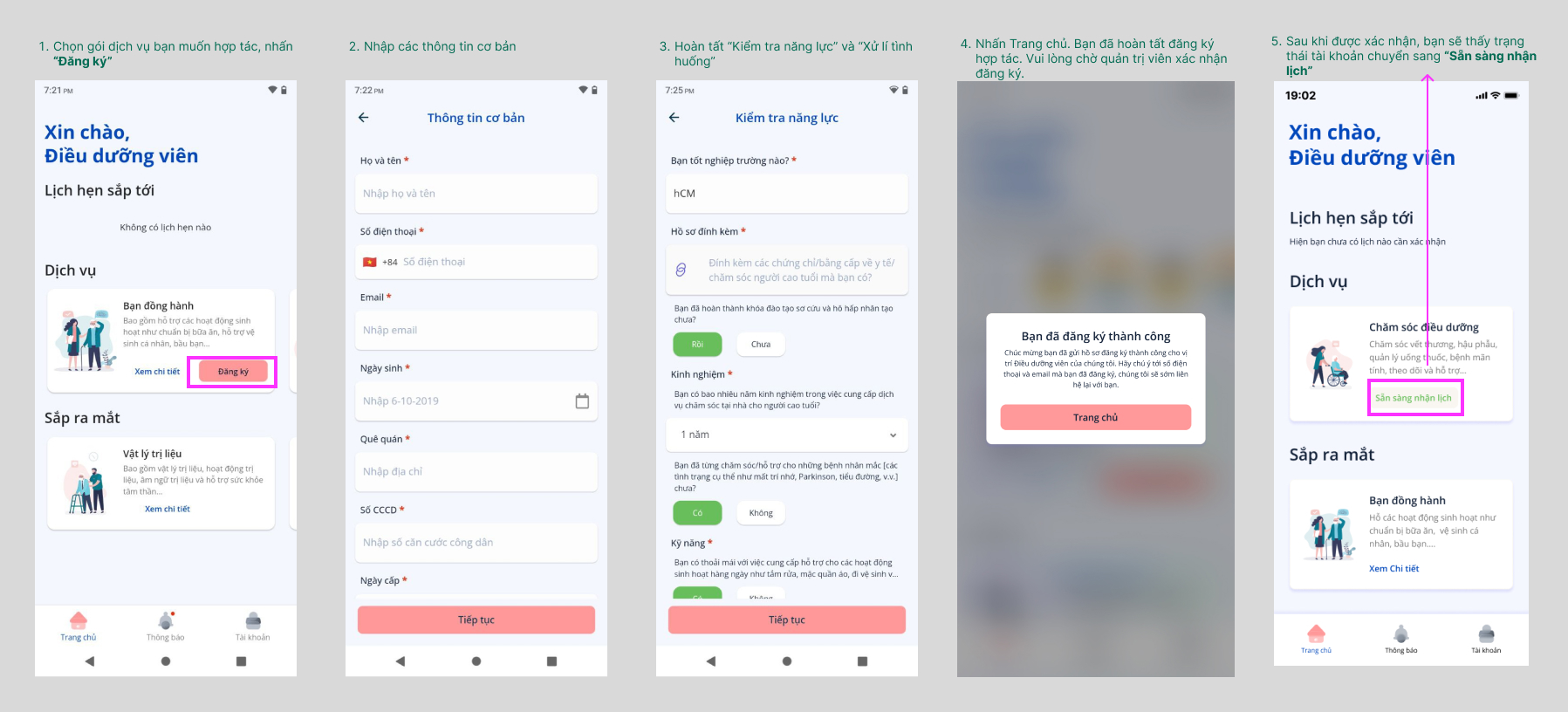
Step 1. On the Home screen, select the Service section, find the Service Package you want to register for.
- Nursing care: including wound care, post-operative care, medication management, chronic disease management, monitoring and rehabilitation support for the elderly.
- Companion (coming soon): includes assistance with activities of daily living such as meal preparation, personal hygiene assistance, and companionship with the elderly.
Step 2. Enter basic information as instructed and click “Continue”
Step 3. Enter information “Ability Test” and “Situation Handling” Follow the instructions and click “Continue”
Step 4. After completing the information provision, your service registration request will switch to “Pending approval”
Step 5. Please wait for HioCare Administrator to check the information and confirm your request within 2 days. Once confirmed, the mode will be updated to “Ready to take appointments”. You can now start receiving appointments from customers.
4. Get calendar
HioCare administrator will coordinate the corresponding schedule when there is a booking from the customer. You will receive a notification (call) from the administrator about the appointment when it is available. You will need to access the application to confirm the working time and location
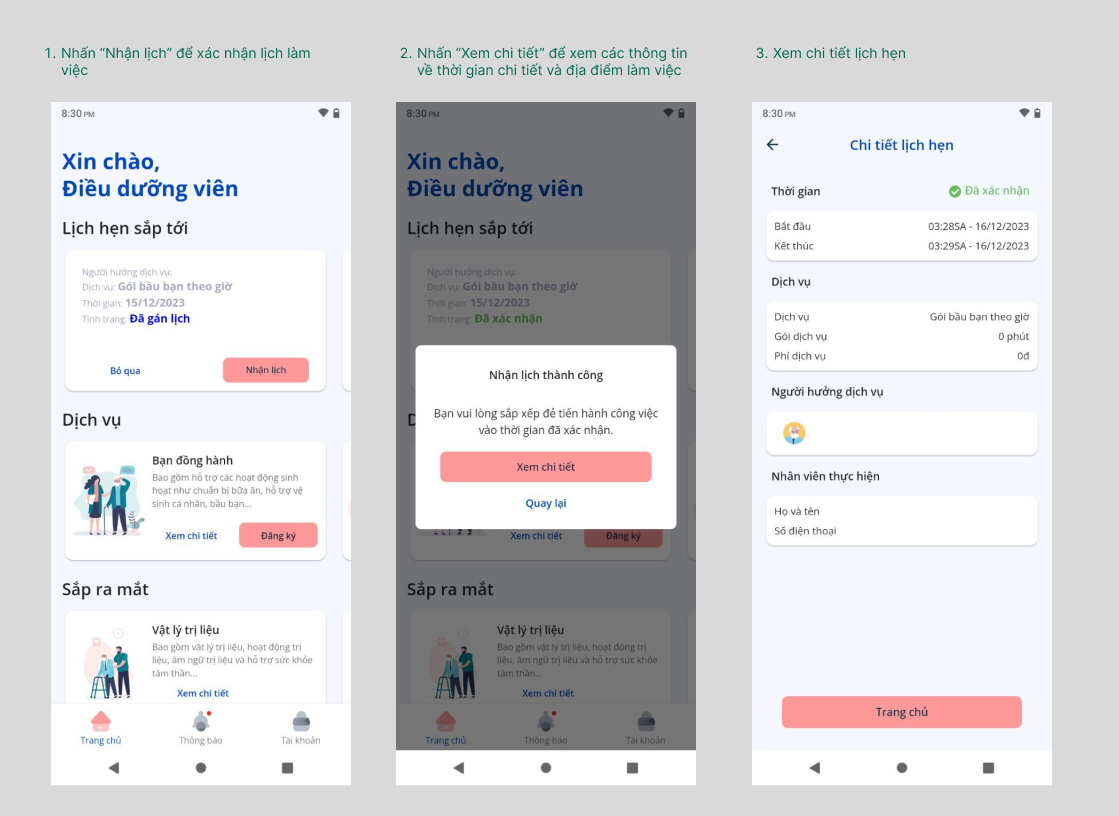
Step 1. Open HioCare app
Step 2. In the “Upcoming Appointments” section, click “Get Schedule” to confirm you will proceed with the work
Step 3. After confirming, click “View details” to receive information about location, customer contact information.
5. Update work status
After confirming the schedule, after arriving at the work location, you need to access the application to press “Start service”
After completing the service, you need to open the app and update the status “End of service”.
 English
  Vietnamese